Is a Competitor's Black Friday 'Was' Price Real? 3 Checks
A struck-through price proves nothing alone. Three checks on a rival's own product data, the FTC test for a real former price, and what to watch from now.
Thomas Pham · · Updated · 9 min read
A rival's Black Friday "was" price is real only if you can point to a time before the sale when that same number was the live selling price, for weeks rather than a day. The struck-through figure on the sale page proves nothing by itself. To check it, you need the product's price history, and the only history you can trust is one somebody recorded before the sale started.
Updated 5 November 2026.
That matters because the "was" price is the number that makes you panic. Say you sell waxed jackets, and on Black Friday morning your closest rival's best seller shows its old price struck through, a red badge and a new price well under yours. If that old price was genuine for months, the rival is giving up real margin and you have a decision to make. If it appeared last week, the "discount" is a costume, and matching it would mean cutting your real price to chase a made-up one.
What makes a "was" price real?
A "was" price is real when it was the genuine price the seller openly charged, on a regular basis, for a reasonably substantial period before the sale. That is the US Federal Trade Commission (FTC) test. A number that only ever existed struck through, or was raised just before the markdown, fails it.
The wording comes from the FTC's guide on former price comparisons, 16 CFR 233.1. A former price is a legitimate basis for a comparison "if the former price is the actual, bona fide price at which the article was offered to the public on a regular basis for a reasonably substantial period of time." When the "was" price was inflated only to make the cut look bigger, the guide says "the 'bargain' being advertised is a false one."
Two details keep the test fair. First, a former price "is not necessarily fictitious merely because no sales at the advertised price were made" (same section, part (b)). So "nobody bought it at full price" is not proof of anything. Second, the seller still has to show the price was "openly and actively offered for sale, for a reasonably substantial period of time." The UK's ad regulator frames the same idea as a comparison of durations: in an Advertising Standards Authority ruling, retailers "should consider how long the advertised product had been on sale at the higher price, compared to the period for which the promotional price was offered."
Use this as your own standard of evidence: you are deciding whether to match a price, not ruling as a regulator.
Where does a Shopify store's "was" price come from?
On Shopify, the struck-through number is the product's Compare-at price, a field the merchant types in themselves. Shopify's own instruction is to set it "to the original price of the product" and to "make sure that the value in the Compare-at price field is higher than the value in the Price field" (Shopify Help Center, sales).
The help page sets one rule for that number: it sits above the Price. A sale page shows the number, not the day it was entered. That is why the check has to look at history, not at the page. Shopify also says both amounts "can be displayed on product pages and collection pages", while "only the sale price is displayed at checkout" (Shopify Help Center, sales).
How do you see a rival's price data without logging in?
Shopify documents a public endpoint that returns one product as JSON: GET /{locale}/products/{product-handle}.js (Shopify Ajax API, product). Each variant in the answer carries its price and its compare_at_price. Shopify states the Ajax API "is an unauthenticated API. It doesn't require access tokens or a client ID to access" (Ajax API overview).
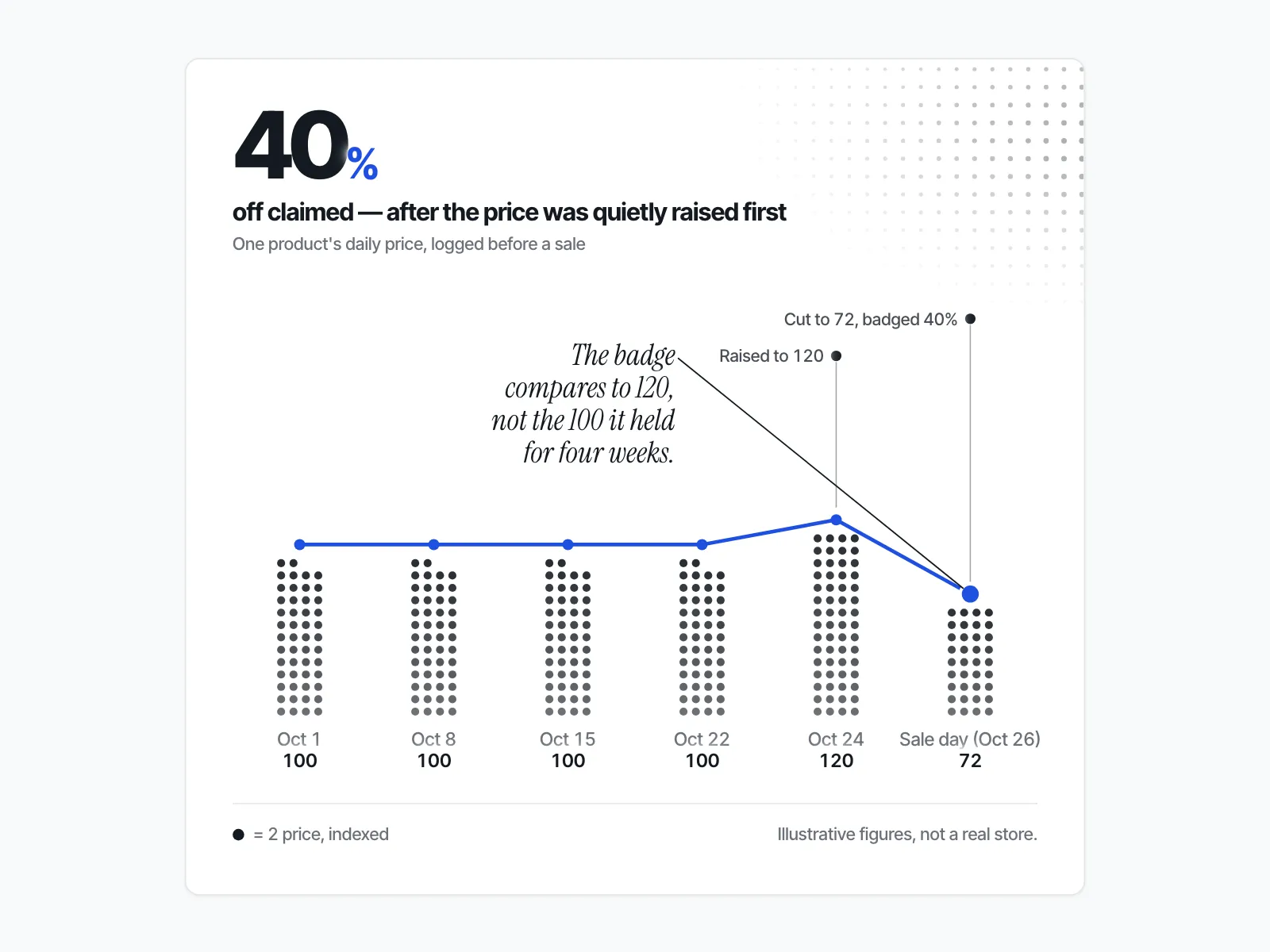
This is the shape a logged price takes when the "was" price is only an anchor: flat for weeks, a quiet bump, then the cut. The badge on the sale page only ever compares to the bump. That is what the rest of this guide teaches you to catch.
So the raw material is open. What one request gives you is a snapshot: the price and compare-at for today. A variant with no compare-at comes back as "compare_at_price": null in Shopify's example response. The history only exists if you keep asking.
Here is the routine for a do-it-yourself log:
- Pick the products you would actually consider matching. Hero products, not the whole catalogue.
- Request each product's
.jsaddress once a day, at roughly the same time. - Save the date, the
priceand thecompare_at_pricefor each variant you care about, in one row per day. Use the same address and the same variant every day, so each row compares like with like. - Keep going through Cyber Monday, 30 November, so the log covers the whole sale and its end.
A spreadsheet is enough. What makes the log valuable is the date on each row, not the tool.
Which three checks tell you if the "was" price is real?
Run three checks on one product's daily log: when the compare-at first appeared, whether that number was ever the live price, and whether the price rose just before the cut. Failing check 2 or 3 is a reason not to match.
| Check | What to look for in the log | What it means |
|---|---|---|
| 1. When did the compare-at first appear? | compare_at_price filled in on early rows, or null until the day of the sale | Context, not a verdict: a compare-at that only appears on sale day isn't proof of anything by itself. Check 2 is what tells you |
| 2. Was that number ever the live price? | The struck-through figure sitting in the price field itself, across weeks of rows | This is the FTC's "offered to the public on a regular basis" test, in data |
| 3. Did the price rise just before the cut? | The price stepping up in the days before Black Friday, then "dropping" back | The inflated-anchor pattern 16 CFR 233.1(a) calls a false bargain |
Back to the jackets. If your rival's log shows the jacket at the "was" price as its live price through October, with no compare-at, and the markdown lands on 27 November, the discount is real and their margin really is thinner this week. If the log shows the live price unchanged for weeks and a compare-at that only appeared on sale morning, the "saving" is measured from a number nobody was ever asked to pay. Those two cases call for opposite responses, and the sale page looks identical in both.
What if you weren't watching before Black Friday?
One snapshot can tell you the current price, the current compare-at, and whether the product is marked down at all. It cannot tell you how long the "was" price held before today. That part is unknown, and it should stay unknown in your notes rather than turn into "probably fake."
What you can still do with a single read on sale day:
- Check whether the compare-at is above the price at all. If it isn't, there is no markdown, whatever the banner says.
- Note the compare-at as a claim to test. Keep logging through Cyber Monday and into December. If the product settles back at the compare-at after the sale, that is weak support for it. If it settles at the sale price, the "was" price looks like a one-off anchor.
- Decide on your own numbers. Your margin and your stock are known; the rival's real discount is not. Our post on whether to match a rival's Black Friday discount on clothing walks through that decision.
What can a product page never prove?
Even weeks of clean history show only what was listed. They cannot show how many units sold at the former price, what the rival paid for the stock, or why they set the number. So the page can narrow the odds without settling the question.
Treat the checklist as a reason to match or not, never as an accusation. If you run a store yourself, the same test applies to your own Compare-at fields.
What do Google's "Price drop" and "Deal Ends" badges check?
As of 5 November 2026, Google checks a product's last 60 days of prices before badging a deal. "Price drop" needs a significant fall below the 60-day average. The experimental "Deal Ends" countdown, from 15 October to 5 January, needs the lowest effective price in 60 days, at least 10% off, and an end within 7 days.
Those thresholds come from Google's Merchant Center help on price drop annotations and the Deal Ends annotation, where the 10% is measured off "the post-deal price". Deal Ends is not shown in the EEA, Switzerland or the UK. A rival's badge is a hint: Google sees only the prices the store sends it.
How do you check without logging prices every day yourself?
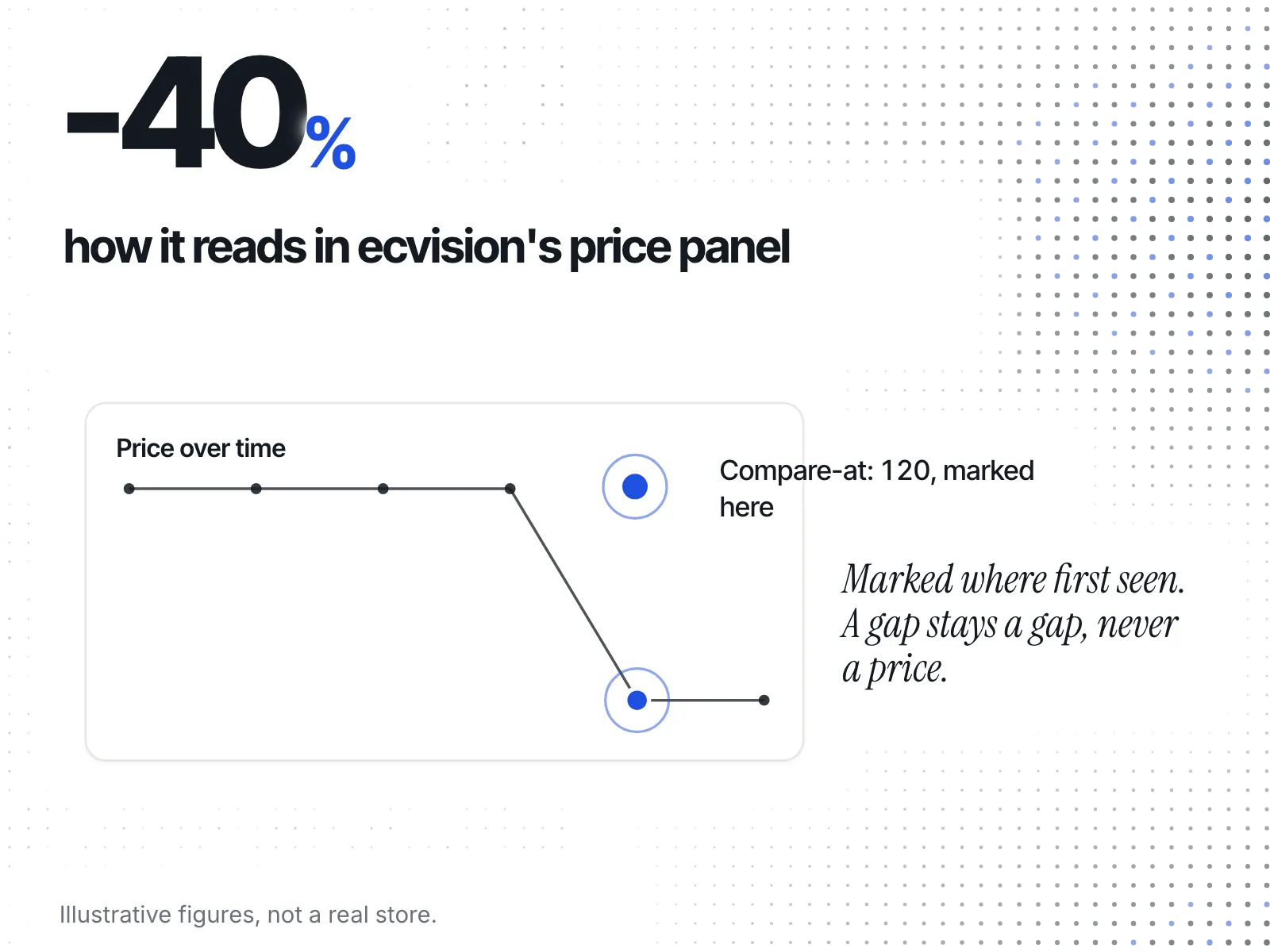
ecvision, a competitor-tracking app for Shopify stores, keeps this log for you. Open a product from the Sales Intelligence tab on the Products page, and its price panel, "Price over time", draws a Price line and, where there is one, a Compare-at line beside it. Every change is marked on the date it was first seen.
Those markers are the three checks done for you. The method behind them is plain:
- When did it first appear? A change is marked at the reading where it was first seen, not averaged across days.
- Gaps stay gaps. "A reading with no price is a gap, not a price," so a missed reading is never counted as a price, and a change is measured against the last reading that had one.
- The summary line counts changes. Above the chart, the panel shows how many changes there were with the low and the high, or "flat across" the number of readings when the price never moved.
- The badge is the current discount. A −N% badge in the panel's header is the percent off the compare-at, shown only where the product is marked down.
Read check 1 by looking for where the Compare-at line starts. Read check 2 by asking whether the Price line ever sat at the Compare-at line's height. Read check 3 by looking for an ↑ marker shortly before a ↓. The checks are the same whether you use the panel or a spreadsheet; ecvision's plans list what each one includes.
What should you do with the four weeks before Black Friday?
Start the log today. Black Friday 2026 is Friday 27 November (publicholidays.com), so a log started this week gives you about three weeks of "before" for every product you pick. That is the difference between a verdict and a guess when the struck-through prices go up.
Pick the products first, with our Black Friday research checklist. Our guide to seeing when competitors start their Black Friday sale covers the other early signals worth watching, and the competitor discount calendar covers watching prices across the whole year.
Your checklist, for each product you might match:
- Log
priceandcompare_at_priceonce a day from now until after Cyber Monday. - Note the first day a compare-at appears.
- Check whether the "was" figure was ever the live price, for weeks.
- Check for a price rise in the days before the cut.
- With no history, write "unknown" and decide on your own margin, not on their badge.