How to track a competitor's sales calendar on Shopify
A rival's sale dates, depth and products can be rebuilt from their storefront prices over time. How to log them, and the discounts that never show.
Thomas Pham ·
A rival drops their prices and your traffic dips the same week. Was that a one-off, or do they do it every month? Shopify won't tell you. A store's discount history sits in its own Shopify admin. But most of what you need is printed on the rival's product pages every day. You only have to write it down.
Can you see when a competitor on Shopify runs a sale?
Yes, for the most common kind of sale. When a Shopify store marks a product down by hand, it puts the old price in a field called Compare-at price and the new one in Price. Both can show on the product page and the collection page. Log them on a schedule and the dates fall out of the changes.
Shopify's own help page describes the setup: "To set a sale price, set the value of the Compare-at price field in your Shopify admin to the original price of the product," and the compare-at value has to be higher than the price for the sale to display. Shopify adds that "both these amounts can be displayed on product pages and collection pages, but only the sale price is displayed at checkout."
So a markdown is meant to be seen. That is the point of it: the compare-at price is the store telling shoppers how much they save. Some themes add a badge or a percent-off label on top, though Shopify's wording is that the theme "might", so don't count on it. The two prices are the reliable part.
One catch on collection pages. If a product's variants carry inconsistent compare-at prices, Shopify says "the collection page won't display the product as being on sale, even if individual variants are." Read the product page itself, and the selected variant, when you want to be sure.
Where does the sale price come from?
Each variant of a Shopify product carries a price and a compare-at price. In Shopify's Storefront API the field is compareAtPrice, documented as: "This can be used to mark a variant as on sale, when compareAtPrice is higher than price."
You don't need to touch the API to use this. What it tells you is that the sale signal isn't something you reverse-engineer from a banner. It is a field Shopify built for exactly this purpose, and the higher price on the page is that field. When you record it, you are recording what the store itself set.
How do you build a competitor's discount calendar?
Pick the products that matter, visit them on a fixed schedule, and log four things each time: the date, the price, the compare-at price, and whether it shows as on sale. Work out the discount depth for each row. The calendar is every date the price or the compare-at changed.
In practice:
- Choose the products. Not the whole store. Take the rival's best sellers, the products that overlap with yours, and one or two from their clearance collection so you can tell a clearout from a campaign.
- Pick a schedule and keep it. The gap between your visits is the shortest sale you can see. A sale that starts and ends between two visits never shows up in your log. If you check weekly, a weekend flash sale can slip through entirely.
- Log the variant you'd buy. Same size, same colour, every time, so a change in price is a change in price and not a different variant.
- Compute depth. Discount depth is (compare-at − price) ÷ compare-at. If compare-at is empty or not higher than the price, the product isn't on sale by Shopify's own rule.
- Mark the change days. The calendar isn't your list of visits. It is the dates where something moved: a sale starting, a sale ending, the depth changing, or the base price itself going up or down.
A worked example
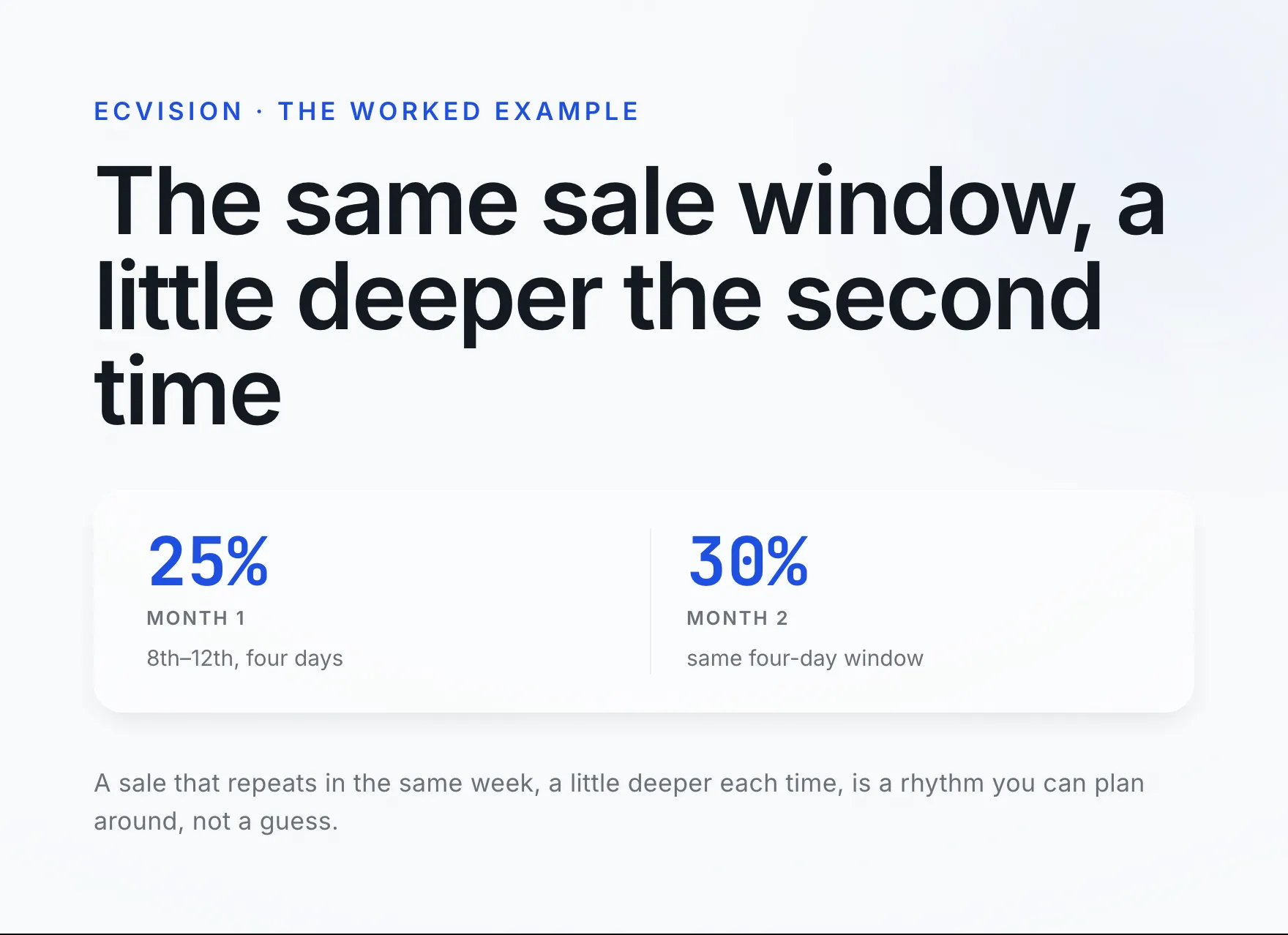
Say you sell swimwear and a rival sells the same kind of one-piece. You log their best seller every morning for two months. The numbers below are invented for the example; they are not any real store's.
| Date (example) | Price | Compare-at | Depth |
|---|---|---|---|
| 1st of month 1 | 80 | — | none |
| 8th of month 1 | 60 | 80 | 25% |
| 12th of month 1 | 80 | — | none |
| 1st of month 2 | 80 | — | none |
| 8th of month 2 | 56 | 80 | 30% |
| 12th of month 2 | 80 | — | none |
Two months in, a pattern is forming: a sale around the second week, about four days long, a little deeper the second time. If it shows up a third month, you can plan around it. You might hold your own email back that week, or run something on a different angle, instead of finding out from your dashboard after the fact.
What discounts can't you see this way?
Discount codes and automatic discounts. Shopify applies those in the cart or at checkout, not to the price on the product page, so the storefront looks unchanged. A rival running a sitewide code leaves no trace in your price log. "No markdowns" can mean "discounts only at checkout."
This is the part people get wrong, so it's worth being precise. Shopify's manual says a buy X get Y offer "can be applied as discount codes or as discounts that automatically apply to a customer's cart when they meet the requirements." Discount codes work the same way from the outside: "Customers enter a specific code at checkout to receive a discount." Neither changes the price or compare-at you've been logging.
So a flat line in your log has two possible meanings:
- the store really didn't discount that product, or
- the store discounted it through a code or an automatic discount, and the product page never showed it.
Your log can't tell those apart. Write the finding as "no markdowns on the product page", not "never discounts". To cover the other half, watch the places a code has to be announced to be used: the announcement bar, the homepage, the rival's emails if you're subscribed, and their social posts. Add those sightings to the same calendar with a note that they came from a banner or an email, not from the price.
Shopify does keep a full record of each discount, with a timeline that shows "the date and time that a discount is created, as well as when a discount is active or expired." It sits on the discount's settings page in the store's own admin. You are rebuilding from the outside what the rival can read in one place, and that is why the method has gaps.
What does a discount calendar tell you about a rival?
Three things: their rhythm, whether their discounts are getting deeper, and which products they're willing to cut. Together those tell you when to expect pressure on your prices, and whether it's a planned campaign or a store moving stock.
Rhythm. Do the sales land on the same dates every month, only around the big retail weekends, or at random? A fixed rhythm is a calendar you can plan against. Random markdowns can mean someone is reacting to stock or sales numbers week by week.
Depth over time. If the same product goes from a modest discount to a deep one over a few months, the rival is either pushing harder for sales or clearing it out. Check whether the base price moved as well. A store that raises the price and then "discounts" it back is running a different play from one that is actually cutting.
Which products. A rival that discounts its best seller is buying volume with margin. A rival that only marks down old colours and odd sizes is clearing stock, and its hero products are holding price. Those call for different responses from you.
Keep it honest about what you don't know. A price log shows what a brand did with its prices. It doesn't show how many units the sale moved. Treat it as a record of their decisions, not their results.
Can a tool track competitor prices for you?
Yes. The method above is a spreadsheet and a routine, and keeping it up for a dozen products across a few rivals is where most people stop.
That routine is what ecvision's Sales Intelligence tab does for the stores you track. It is the first of the three tabs on Products, before Collections and Catalogue. Each row shows the current price with the compare-at struck through and a "−N%" badge when the product is on sale. Open a product and the Price over time panel draws the price, and the compare-at where there is one, as a dated chart, marks every change as "from → to", and sums it up in one line: "N changes · low X · high Y" when the price moved, or, when it never did, "flat across N readings" followed by "on sale" or "no discount". The blind spot above still applies: codes and automatic discounts don't show in a price.
You can see what's included on the pricing page, or start from the homepage.
Your checklist
- Pick a handful of the rival's products: best sellers, overlaps with yours, one clearance item.
- Visit on a fixed schedule; the gap between visits is the shortest sale you'll catch.
- Log date, price, compare-at and depth for the same variant every time.
- Mark the days something changed; that list is the calendar.
- Treat "no markdowns" as "no markdowns on the page", and check banners and emails for codes.
- Read rhythm, depth and which products before deciding how to respond.