Connect ChatGPT to ecvision
Add ecvision to ChatGPT in three steps, approve one workspace, and ask about your rivals with real figures. Plus every snag, why, and the fix.
Last updated
Add ecvision to ChatGPT once. After that, ask about your rivals in any chat and get figures with the day they were read.
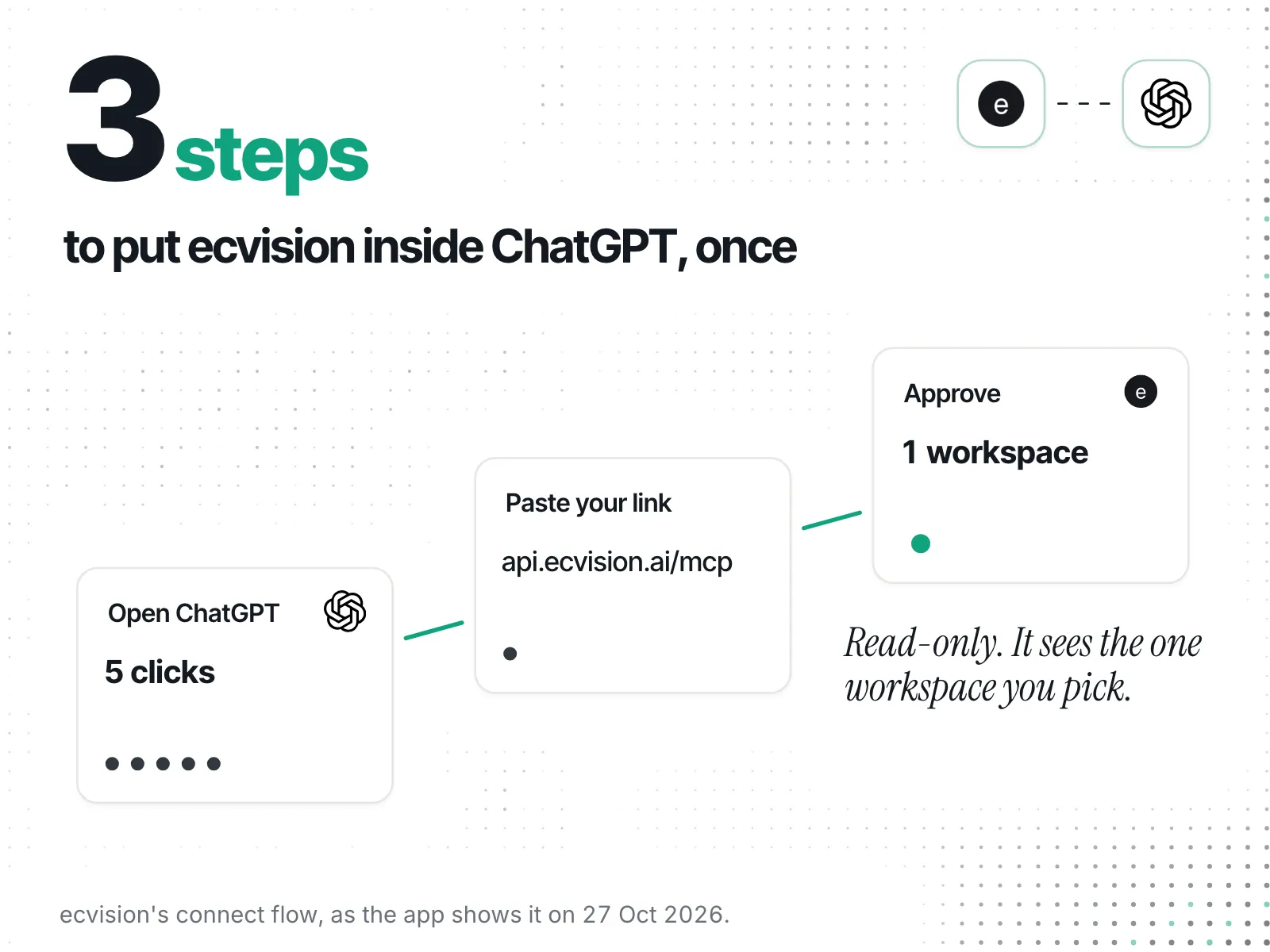
1. Open ChatGPT's connectors
On ecvision, open MCP in the sidebar and pick ChatGPT & Codex. The Open ChatGPT's connectors button takes you most of the way. If it lands somewhere else, go by hand: Settings › Apps & Connectors › Advanced settings › Developer mode › Create. Developer mode has to be on before Create appears.
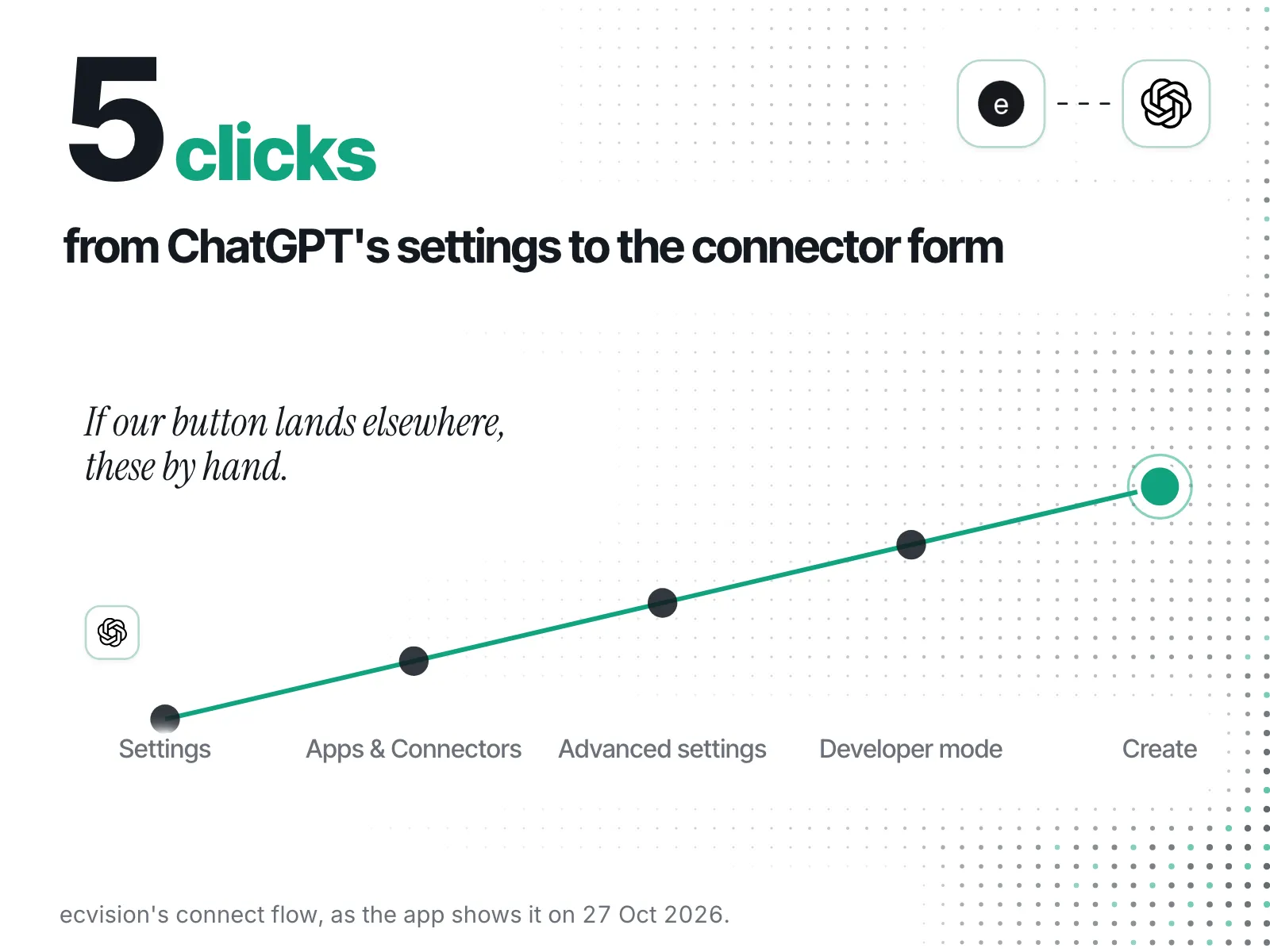
2. Paste your ecvision link
Paste this address. It is the same for every AI.
https://api.ecvision.ai/mcp3. Approve one workspace
ChatGPT opens ecvision's Approve screen. Pick the workspace it may read, then press Approve. It reads, and changes nothing.
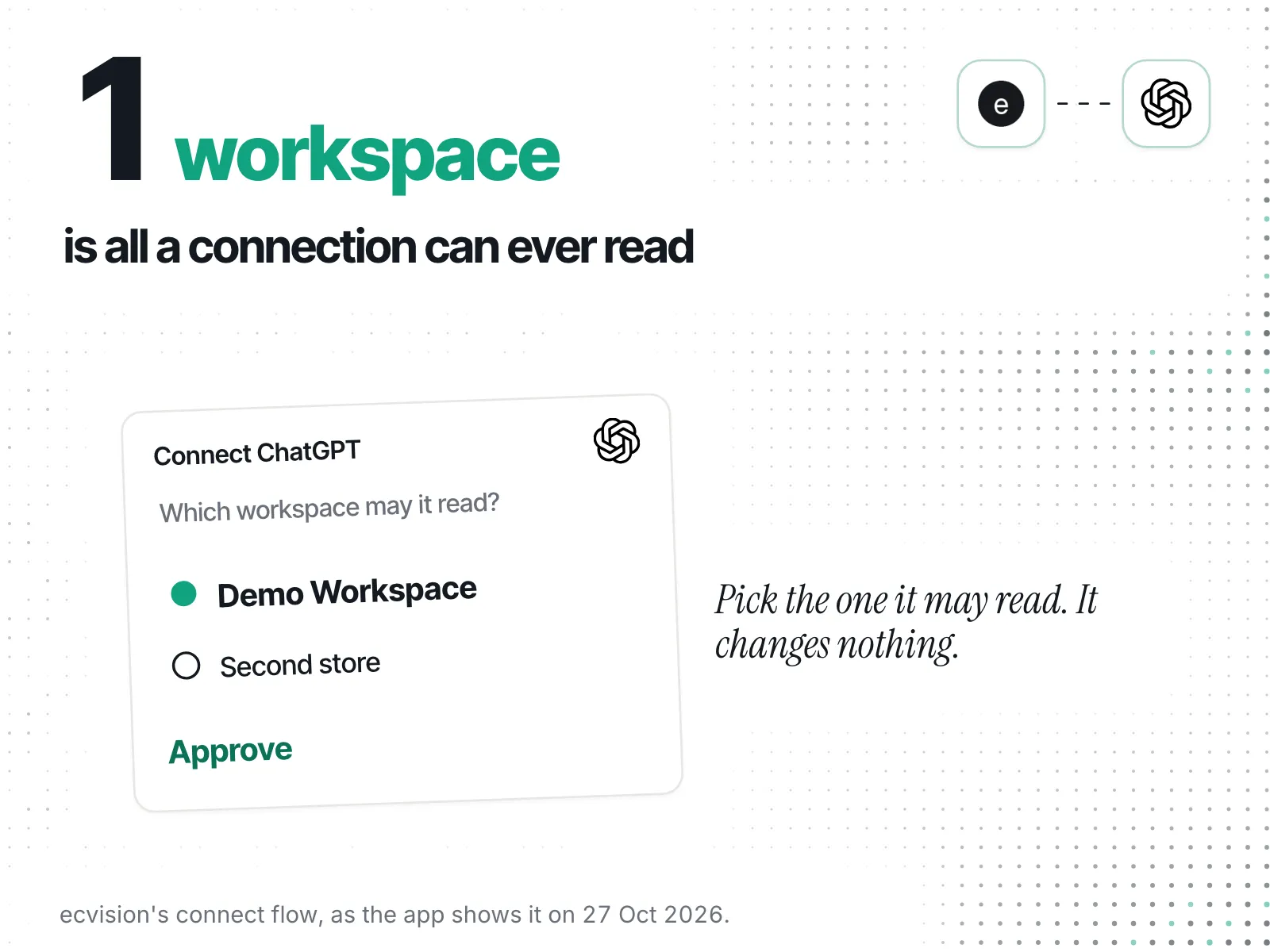
4. Ask your first question
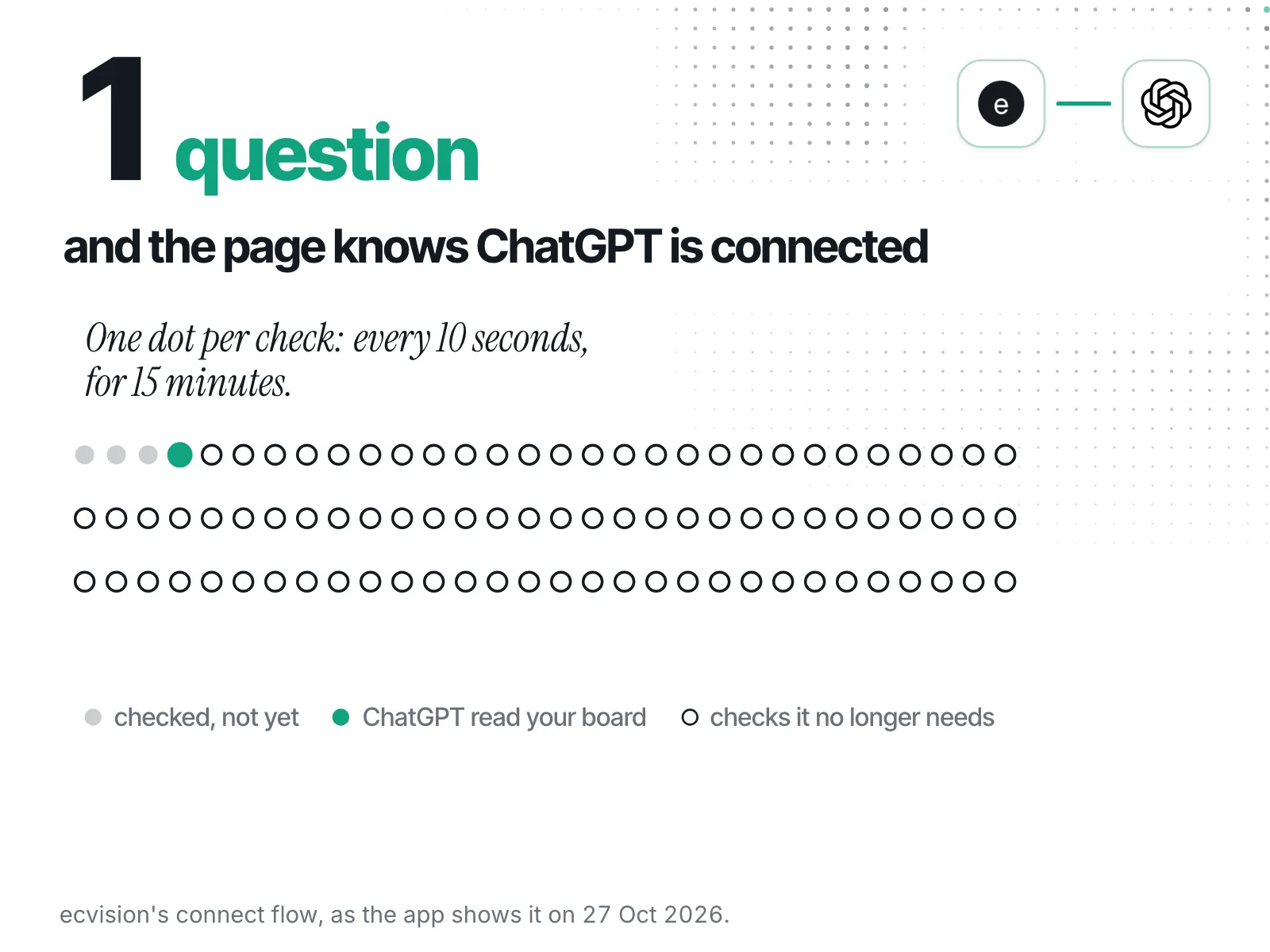
Ask ChatGPT: “List the stores I track in ecvision.” The MCP page turns to “Connected — ChatGPT just read your board.” the moment it does.
ChatGPT keeps a copy of ecvision's tools. When we add one, press Refresh on the ecvision connector to see it.
If something doesn't work
I can't find Connectors in ChatGPT
Why. Our button opens ChatGPT's settings, but ChatGPT doesn't document that link, so it can land on another page.
Fix. Go there by hand: Settings › Apps & Connectors › Advanced settings › Developer mode › Create.
It says ChatGPT was not connected
“This plan's MCP connection limit has already been reached. ChatGPT was not connected, and nothing was granted.”
Why. Each plan connects a set number of AIs at once: Starter 1, Growth 4. Free connects none.
Fix. Disconnect one you no longer use (open MCP in the sidebar), or move up a plan. The screen links both.
It says my session could not be verified
“Your session could not be verified”
Why. Your ecvision sign-in ran out while the Approve screen was opening.
Fix. Sign out, sign back in, then start again from step 1 in ChatGPT.
It says ChatGPT could not be connected
“ChatGPT could not be connected (…). Nothing was granted.”
Why. A check failed before anything was saved. The code in brackets says which one.
Fix. Start again from step 1. If it happens twice, send us the code in brackets.
It's reading the wrong workspace
Why. Each connection reads the one workspace you picked when you pressed Approve.
Fix. Disconnect it on the MCP page, connect again, and pick the other workspace.
The page still says “Waiting for the first question…”
Why. Adding the connector isn't enough: the page turns to Connected the first time ChatGPT reads your board. It checks every 10 seconds and stops after 15 minutes.
Fix. Ask ChatGPT “List the stores I track in ecvision.”, then reload the MCP page.
ChatGPT answered, but not from ecvision
Why. ChatGPT decides when to use a connector, and a general question may not need one.
Fix. Name it: “Using ecvision, which of my rivals launched the most ads this month?”
Can it change anything in my account?
Why. No. It reads, and only the one workspace you picked.
Fix. Disconnect it any time on the MCP page.