What a competitor's holiday gift guide tells you
A rival's gift guide shows the products and price bands they bet on before Black Friday. How to find one, what to note, and how to check its prices.
Thomas Pham · · 8 min read
You are planning your own holiday push, and you have no idea what your rivals are putting in front of gift shoppers. Their holiday gift guide is the closest thing to a public answer. It shows which products they are betting on, at which price bands, and how hard they are pushing them. The one check that matters most is whether the prices on it are their real current prices.
Black Friday falls on 27 November this year, since US law fixes Thanksgiving as "the fourth Thursday in November" (5 U.S.C. § 6103). Here is how to read a rival's guide in the weeks before it.
What does a competitor's gift guide actually tell you?
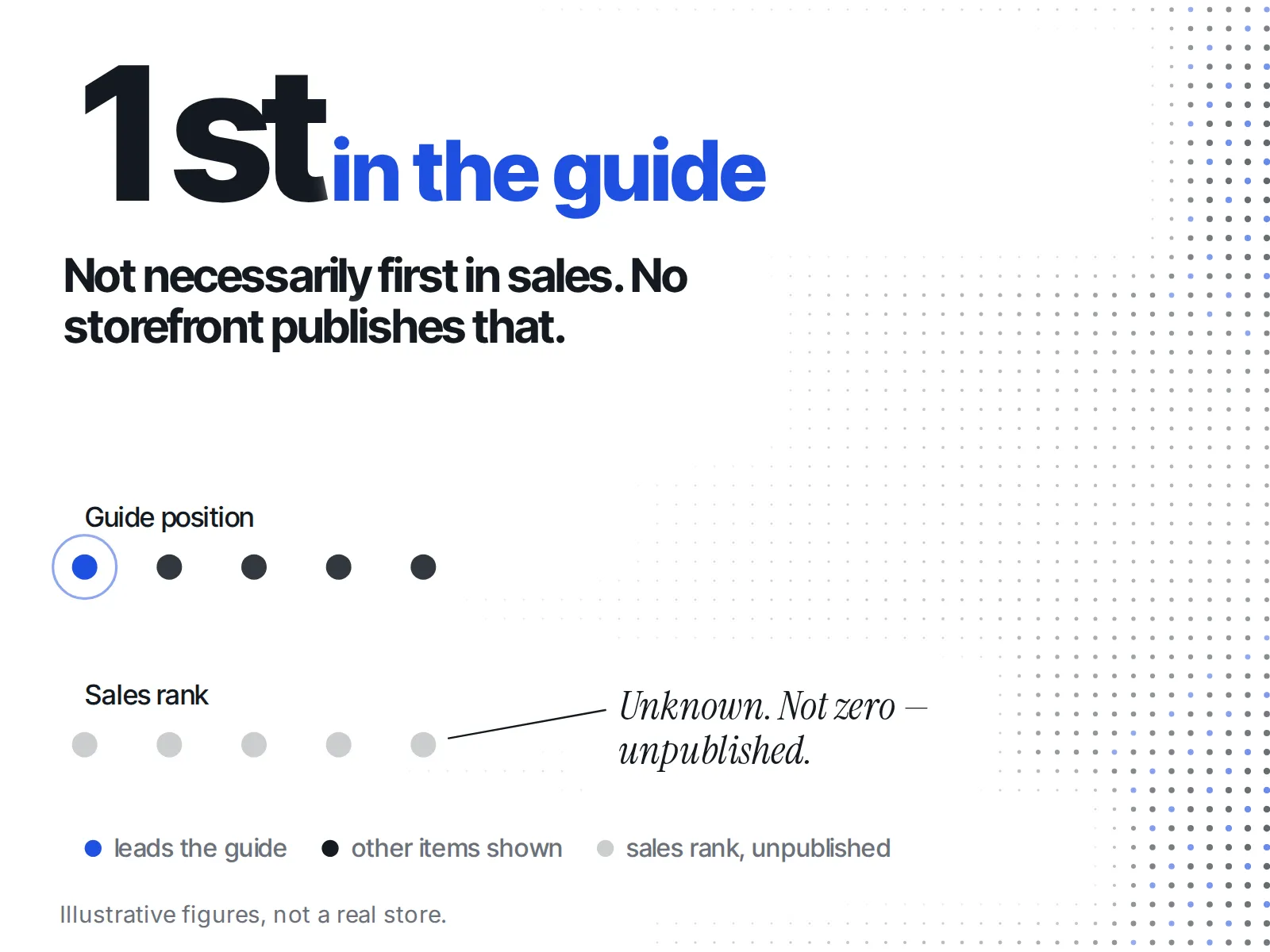
A gift guide is a shop's own shortlist for the season. It tells you which products the shop chose to put forward, which price bands it leads with, which items already show a sale price, and how prominently it is linked. It does not tell you what sells. No storefront publishes that.
Keep that last point in mind. A product sitting first in a guide is the merchant's merchandising choice. It is not a rank of what moves. Read the guide as a statement of intent: this is what they want gift shoppers to see.
If you have been watching when rivals launch their gift SKUs, the holiday gift-set launch calendar covers that timing. This post picks up once the guide itself is live.
How do you find a rival's gift guide?
Start with their header menu and homepage, then their footer, then their sitemap. Every Shopify store publishes a sitemap at the root of its domain, in the format https://example.com/sitemap.xml, and it links to a separate sitemap for collections. A new gift collection shows up there.
Shopify's help says sitemap files "are automatically updated when you add a new webpage, product, collection, image, or blog post" (Shopify Help Center). So a gift collection the shop has not linked from its menu yet can still appear in the collections sitemap.
Three other places to look:
- Their URL paths. Dr. Squatch's BFCM bundle page sits at
/collections/pack-bfcm-all-bundles. Quince's under-$50 gift page sits at/shop/gifts/under-$50. The path tells you how the shop files its guide. - Their emails. Join their list now. A gift-guide email gives you a date the guide was pushed.
- Search. Search the brand name with "gift guide" and look at the URLs that come back, including old ones.
What should you write down when you find one?
Write down five things, with today's date beside each: the products in it, the price bands it uses, the current price and any compare-at price per product, which items are out of stock, and where the guide is linked from. The date matters most. Without it you cannot tell later what changed.
| What to note | What it tells you |
|---|---|
| Products in the guide | What they chose to put forward this season |
| Price bands (or none) | Which budgets they are courting |
| Price and compare-at price | Whether a sale price is already showing |
| Out-of-stock items | Where their own page says stock ran out |
| Where it is linked from | How hard they are pushing it |
Price bands are the shop's own labels, so check the items under them. On 5 November, Quince's "Gifts $50 & Under" page listed a "Passion Pink Mongolian Cashmere Crewneck Sweater" at $55.00 (Quince). The band is a heading, not a guarantee about every product under it. If you build bands of your own, the band a rival leads with is the one worth comparing against.
Is the price on a gift guide real?
On Shopify, a sale price only shows when the Compare-at price field is higher than the Price field. So the "was" price on a gift guide is whatever the merchant typed into Compare-at. To know whether it is real, you need the price the product carried before the guide went up.
Shopify's help puts it plainly: "To set a sale price, set the value of the Compare-at price field in your Shopify admin to the original price of the product" (Shopify Help Center). If the field is new to you, here is what a compare-at price is on Shopify.
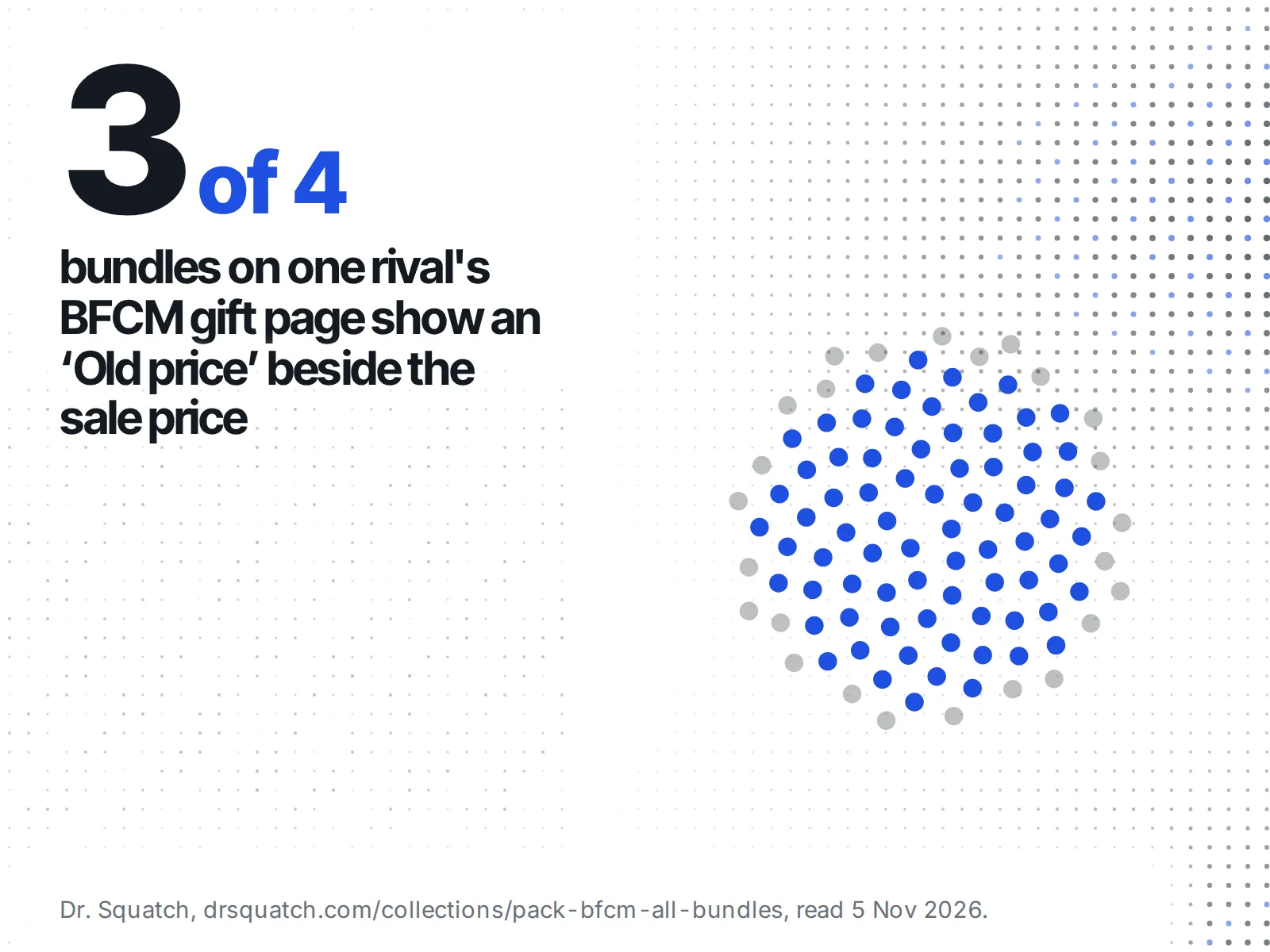
Dr. Squatch's BFCM bundle page on 5 November is a clean example of what to record. Its "Soap, Deo, Body Wash + Gift Bag" showed $30.00 beside an "Old price" of $55.00. Its Bar Soap 9-Pack showed $54.00 beside $63.00. Its Harry Potter Collection showed $36.10 beside $38.00, marked Out of Stock. Its Lip Balm 4-Pack showed $16.00 with no "Old price" at all (Dr. Squatch). Write those pairs down with the date. Then you have something to compare against when the sale starts.
Two details on Shopify catch people out. A compare-at price of $0.00 "isn't the same as an empty compare-at price". And when a product's variants carry different compare-at prices, "the collection page won't display the product as being on sale, even if individual variants are" (same Shopify page). So a guide can hide a discount that the product page shows. Open the product before you conclude anything.
The full method for testing a "was" price is in how to tell if a competitor's Black Friday was-price is real.
Does it matter where the guide is linked from?
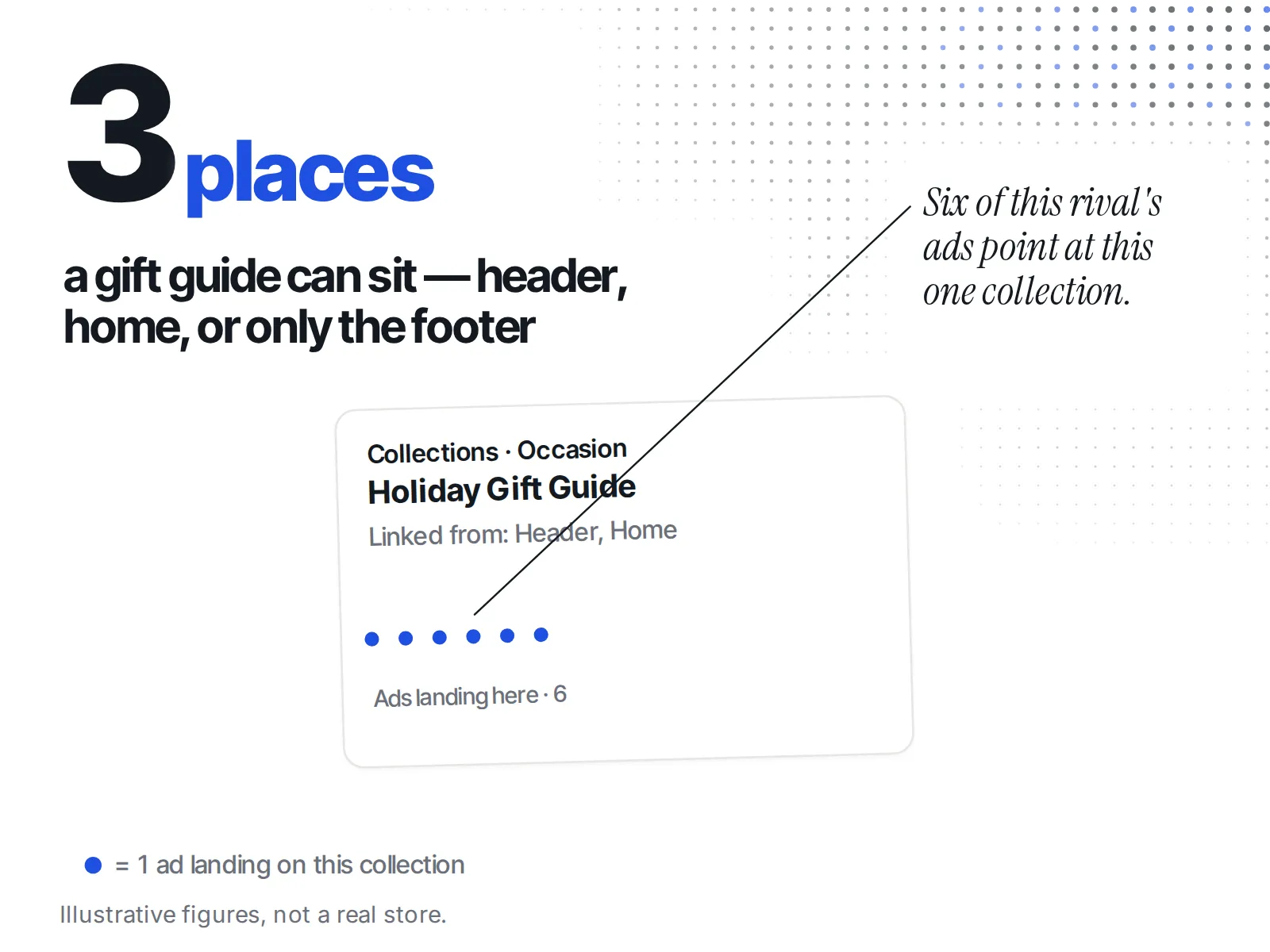
Yes, as a rough read of how hard the shop is pushing it. A guide in the header menu or on the homepage is in front of every visitor. A guide reachable only from the footer, or only from the sitemap, is a quieter bet. If the shop's ads land on that exact page, they are sending ad traffic there.
ecvision's Collections tab records this for each collection a tracked rival runs. Its "Linked from" column shows Header, Home and Footer, in the order a shopper meets them, or "Not linked". Its "Ads landing here" column counts the shop's ads that point at that collection, read from a different source on a different day from the collection list. "View ads" opens those ads, and "View products" opens the catalogue filtered to that one collection.
Each collection also gets a kind: Category, Seasonal drop, Collab, New arrivals, Shop's bestsellers, Occasion, Attribute, Sale or Site machinery, with Unclear and Not classified yet as states rather than kinds. The tab explains the kind as "Inferred by a language model from each collection's name and size, and shown only where it was at least 70% sure." A filter on those kinds lets you go straight to Occasion and Seasonal drop instead of scrolling every Category.
In the catalogue, each product's price prints as the range the storefront published, never a midpoint. A "Sold out" badge shows only where the storefront itself said so.
Is it a new guide, or last year's page left up?
Check the date the shop gives the collection against the date you first saw it. The two can differ, and some shops publish no date at all. A guide that is simply last year's page, still live, tells you something too: they have not made a fresh seasonal bet yet.
Parachute Home is the example this week. On 5 November, a search showed last year's guide still indexed at /pages/2025-gift-guide, no 2026-named guide URL, and a second, undated page: a collection at /collections/holiday-gift-guide. That undated collection is the one to watch. A year-named page gets replaced each season, but a standing collection gets refreshed in place, so its URL never tells you when it changed. Only its contents do. Note what is in it now, and check again next week.
ecvision's Collections tab shows two dates side by side for this reason: "Published (per the shop)" and "First seen by us". Where the shop publishes no date, the cell says "The shop publishes no date for it" rather than guessing one. The gap between the two dates is the thing to read.
What do you do with it before 27 November?
Use what you noted to check your own guide's price bands, your own compare-at prices and your own placement. Then decide on timing. You do not need to copy their products. You need to know which budgets and which items your shoppers will see beside yours.
The timing matters because of when people shop. In NRF's 2026 holiday shopping trends, published 28 October, "Two-thirds (64%) say they are likely to wait until Thanksgiving weekend to do most of their holiday shopping," against 51% five years ago (NRF). So the guides that matter most are the ones live on that weekend. You have until then to adjust yours.
Say you sell candles, and a rival puts a three-candle gift set at the top of a gifts-under-$50 guide, linked from their header, with a compare-at price you have not seen on that set before. You would not drop your own price on the spot. You would check whether you have a set in the same band, whether it is in your own header, and what that rival's set was priced at last week. If you never recorded last week's price, start recording now, so you can answer it before Black Friday.
If you are weighing whether to move your own sale earlier in response, should you start your Black Friday sale early walks through that call.
A short checklist for reading a rival's gift guide
- Find it: header, homepage, footer,
sitemap.xml, their emails. - Date it: the date you first saw it, and any date the shop gives.
- List the products and the price bands, and check items against their band.
- Record price and compare-at price per product, today.
- Open the product page where the guide shows no sale.
- Note out-of-stock items, as the page states them.
- Note where it is linked from, and whether ads land on it.
- Check again before Thanksgiving weekend, and compare.
If you would rather not do this by hand for every rival, ecvision's Collections tab keeps those dates, placements and ad counts for each store you track. The plans are on the pricing page.