How to spot a competitor stock-out during BFCM
A rival's hero product shows unavailable mid-sale. Here's how to tell a real sell-out from a pulled page or a waitlist, and what to do in the hours it lasts.
Thomas Pham · · 8 min read

It's Black Friday afternoon and a rival's best seller has stopped taking orders. To spot a real competitor stock-out during BFCM, check three public things: whether the product page still loads, whether every variant reads unavailable, and whether their ads are still pointing at it. Those three reads sort it into one of four cases, and only one of them is your opening.
This year Black Friday is Friday 27 November and Cyber Monday is Monday 30 November, because US Thanksgiving falls on the fourth Thursday in November. A rival's sale doesn't have to start or end on those two days, so watch from about 20 November to 1 December.
The window is short and the money in it is large. Shopify says its merchants made a record $14.6 billion in sales over the BFCM 2025 weekend, up 27% on 2024, with sales peaking at $5.1 million a minute at 12:01pm EST on Black Friday.
What does "unavailable" actually tell you?
On its own, almost nothing about why. A Shopify storefront publishes one yes-or-no flag per variant and no stock count. A greyed-out button can mean the product ran out, the merchant pulled it, one size went, or the brand is running a waitlist on purpose. Each needs a different reaction from you.
Shopify's Liquid docs describe a variant's available property in one line: "Returns true if the variant is available. Returns false if not." Shopify's variant reference gives no quantity next to it. For any store created after 5 December 2017, Shopify leaves stock counts out of product JSON "to help prevent bots and crawlers from retrieving inventory quantities for stores to which they aren't granted access". So nobody outside the store sees how many units are left. The full mechanics are in what you can and can't see of a competitor's Shopify inventory.
What can you check from outside, in a few minutes?
Three checks, in this order. Open the product page. Read the per-variant flags from the store's product endpoint. Check Meta's Ad Library for active ads that still point at the product.
- Does the page still load? Open the product URL directly, then look for it in the collection where it used to sit.
- What do the variants say? Shopify's Ajax API answers
GET /{locale}/products/{product-handle}.js, and each variant in the response carriesavailable. Add.jsto the end of the product URL and read the flag for every size and colour, not just the one the page shows first. - Are their ads still running at it? Meta describes the Ad Library as showing "all active ads running across products from Meta". Search the brand, then look for ads that show this product or link to it.
Write down the time of each read. You'll need it when you re-read.
Which of the four things is it?
The three reads most often sort an unavailable product into one of four cases. A real sell-out has a live page, every variant false and ads paused or switched. A partial one has some variants still true. A pulled product has a page that has gone, or opens only by direct link and has left its collection. Planned scarcity has a live page, a waitlist and ads still running.
| What you see | Page | Variants | Their ads | What it most likely is |
|---|---|---|---|---|
| Live page, nothing can be added to cart | Loads | Every one false | Stopped, or switched to another product | Real sell-out |
| One size or colour greyed out | Loads | Some true, some false | Can keep running | Partial sell-out |
| Link no longer opens the product, or it has gone from its collection | Gone, or only by direct link | Can't be read, or reads as normal | Not a deciding read | Pulled from sale |
| A notify-me or waitlist form where the price or cart button was | Loads | Every one false | Still running, still pointing here | Planned scarcity |
Real sell-out
This is the clearest case where their shopper needs somewhere else to go, today. The page still opens, so the merchant hasn't pulled it. Every variant reads false, so there's nothing left to buy in any size. And the ads that sent people there have stopped showing up, or now push a different product. If ads are still running, that alone doesn't settle it. What marks planned scarcity is a waitlist or notify-me form on the page.
Partial sell-out
Some variants are true and some false. That means a size run or a colour is gone while the rest of the product sells. It's a smaller opening. The clothing case is covered in how to tell if a competitor clothing brand is really selling out. The one new wrinkle during BFCM is the ads: if a rival keeps spending on a product with half its sizes gone, they still expect it to sell.
Pulled from sale
If the link no longer opens the product while the rest of the store loads fine, the merchant changed its status. That is a decision, not a stock-out. An archived product is "no longer being sold and isn't available to customers on sales channels and apps," according to Shopify's ProductStatus reference. A draft product "isn't ready to sell and is unavailable to customers on sales channels and apps." From outside, those two look identical. So write "pulled from sale" in your notes, never "archived" or "sold out".
There's a quieter version too. Shopify's help pages describe an unlisted product as one that "can be accessed only with the product's direct URL" and that is "hidden from internet search." If the direct link still opens but the product has vanished from its collection, unlisted is one explanation. You can't confirm it from outside, but it's still for sale to anyone with the link.
Planned scarcity
The page loads, every variant reads false, a notify-me form sits where the cart button was, and the brand's ads keep running at that same page. Paying for traffic to a page that can't take orders reads as deliberate. The brand is most likely collecting names for a drop or a restock.
Do their ads going quiet prove a sell-out?
No. It is consistent with one, and it is just as consistent with a budget that ran out, a creative swap or a campaign that was always meant to end on Friday. Treat it as supporting evidence next to the variant flags, never as the deciding read.
Meta frames the library around active ads. It states retention rules for political and social-issue ads, and for ads delivered in the EU, but the same page says nothing equivalent for an ordinary commercial ad once it stops. So when a product's ad drops out of a brand's search results, all you can safely conclude is that it is no longer showing up as active. Not when it stopped, and not why.
A real gap opens mid-sale. What do you do in the next few hours?
Check your own stock on your matching product first, then move your traffic onto it: point the ads and the email you already have running at that product page. Keep your price where it is. Their gap is your full-price window, and it closes when they restock.
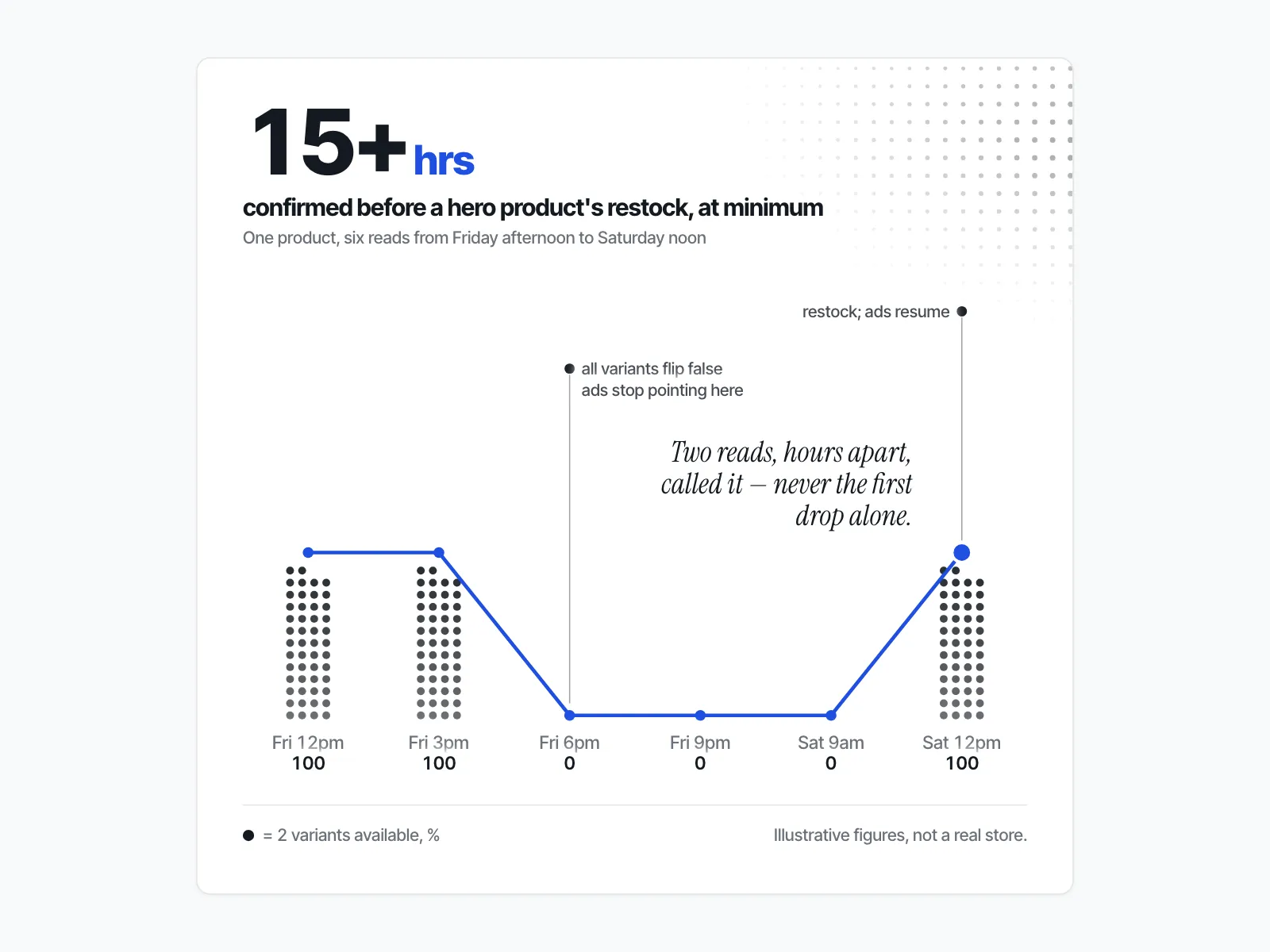
Say you sell weighted blankets, and on Saturday morning a rival's grey one, their hero product, has every size reading false, the page still loads, and the ad that sent traffic there has stopped showing up. Here is the order to work in:
- Check you can actually serve the demand. Look at your own stock on your closest match, by size and colour. If you're thin, don't push it.
- Put your matching product where shoppers will land. Feature it on your homepage and in the collection a shopper searching for a grey weighted blanket would land on.
- Point what's already running at it. Swap the product in the ad set and the email that are live that day.
- Don't cut the price. A shopper who can't buy theirs is already looking for an alternative, so a discount gives away margin you didn't need to give. If you're already in a sale, don't deepen it because they ran out.
- Re-read in two to three hours. A restock, a back-in-stock email or a new ad on their side is your signal to stop pushing.
A single read is not a verdict. Shopify's own Community forum has a thread in which merchants report the public product feed flipping the same variant between available and unavailable within seconds, covered in why a competitor's product shows sold out then back in stock. Act on two matching reads, an hour or more apart, never on one.
How do you watch several rivals through the weekend without refreshing pages?
Pick the two or three products per rival that matter to you, usually their best sellers and anything that competes head-on with yours. Read them at fixed times each day of the window, log what you saw, and only do the full three-check read when something changes.
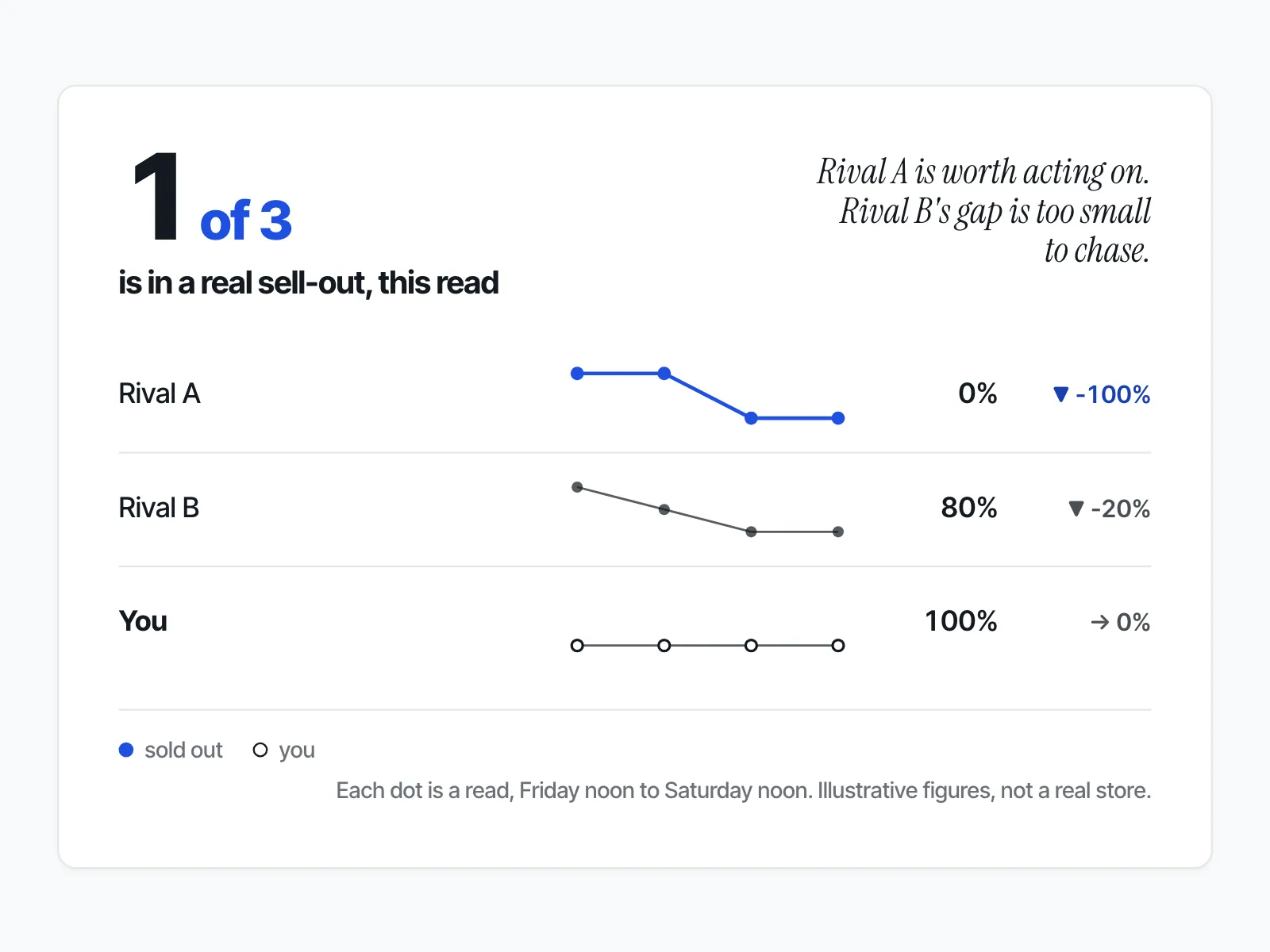
A log with five columns is enough: time, product, page loads (yes/no), variants unavailable (all, some, none), ads running (yes, no, switched). For the weekend-wide view of price, collection and ad changes, see what changes between a competitor's Black Friday and Cyber Monday.
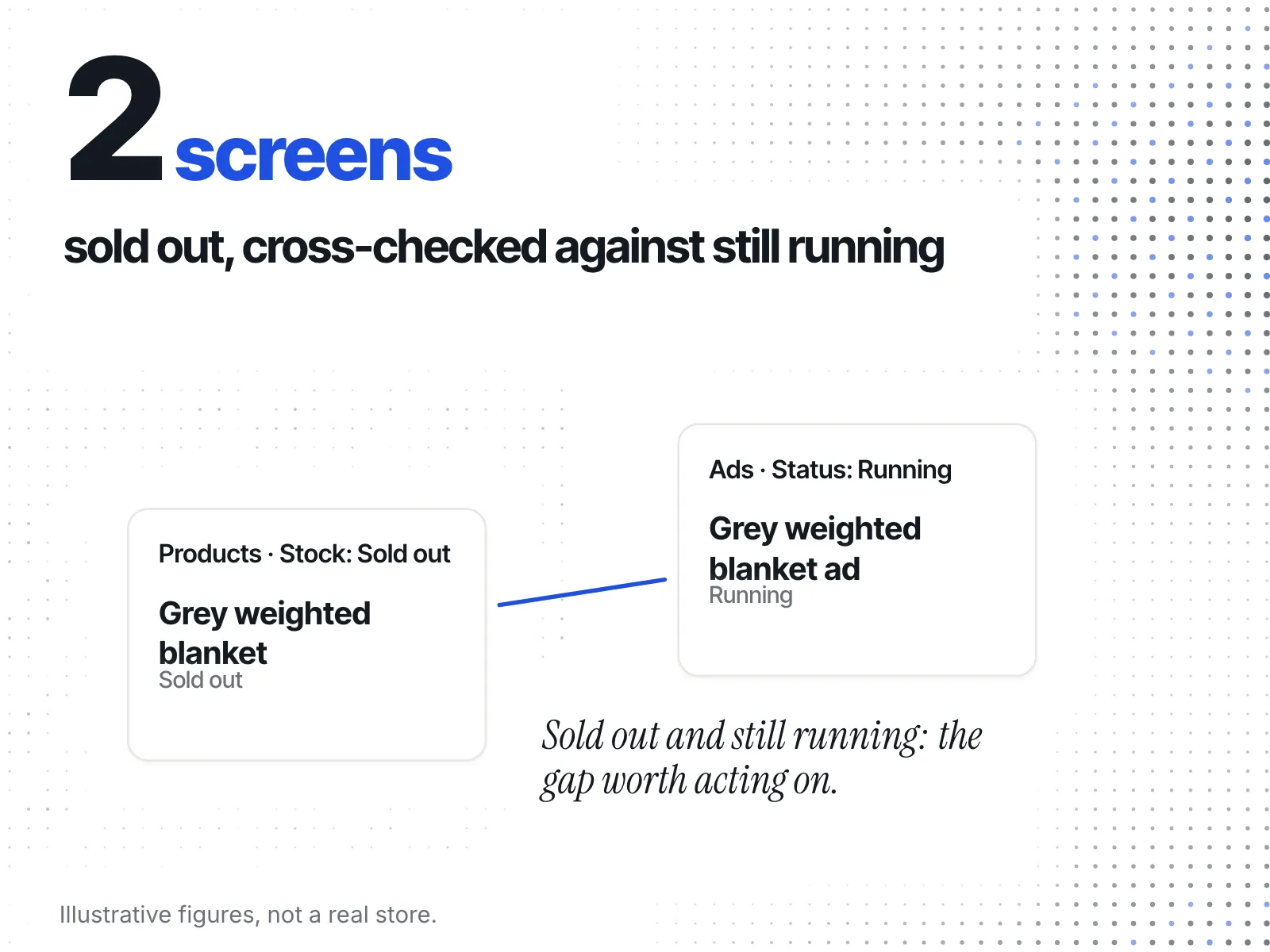
Tracking five rivals by hand gets slow. ecvision does the first sweep. Its Products screen has a Stock filter with three options: All, In stock and Sold out. A product carries a Sold out badge only where the storefront published it unavailable; the code's own note says "Only where the storefront said so." Two limits are worth knowing before BFCM. Availability is rolled up per product, so one size left in stock keeps the whole product out of Sold out; you still open the variants to catch a partial sell-out. And a sold-out product is re-read on a 7-day cycle "so a restock is still seen", which is too slow to time a gap that lasts hours. Use the filter to find which rivals' products went out, then do the hand reads on those.
On the Ads screen, the Status filter has All, Running and Ended. Pick one rival under Stores, set Status to Running, and compare those ads against their products in Sold out. ecvision shows you the flags and the ads. It doesn't decide which of the four cases you're looking at; that read is yours. Plans are on the pricing page.
The BFCM stock-out checklist
- Before 20 November: pick two or three products per rival and note their product URLs.
- Each day of the window: read each product at the same times and log page, variants and ads.
- When a product goes unavailable: run the three checks and sort it into one of the four cases.
- Pulled or waitlisted: note it and move on. It isn't your opening.
- Real sell-out, confirmed by a second read an hour or more later: check your stock, put your matching product on the pages shoppers land on, swap it into running ads and email, and keep your price.
- Every two to three hours: re-read. A restock ends the window.