How to Spy on a Competitor's Shopify Store: What's Public
Most of what a 'spy tool' sells is already public on a Shopify store's own pages. What you can see, what you can't, and where to check each one.
Thomas Pham · · 9 min read

A rival cuts a price, sells out of a colour or starts a new ad, and you find out a week later from a customer. So you search for how to spy on a competitor's Shopify store, and most of the top results sell you an extension or a tool.
Here is the short answer. Most of what you want is public: a rival's current prices, whether an item is on sale, whether a variant is sold out, and the ads they are running. Some of it is rarely or never public: how many units they hold, what they really earn, and their price inside Google's benchmark report. The useful skill is knowing which page answers which question.
Updated 16 October 2026. Shopify's storefront documentation, Google's Merchant Center help, Meta's Ad Library and the ecvision screens described here were checked that day.
What can you actually see on a competitor's Shopify store?
You can see prices, sale markings, sold-out status and running ads, each on a page anyone can open. You usually cannot see unit stock, and you cannot see revenue or one named rival inside a Google pricing benchmark.
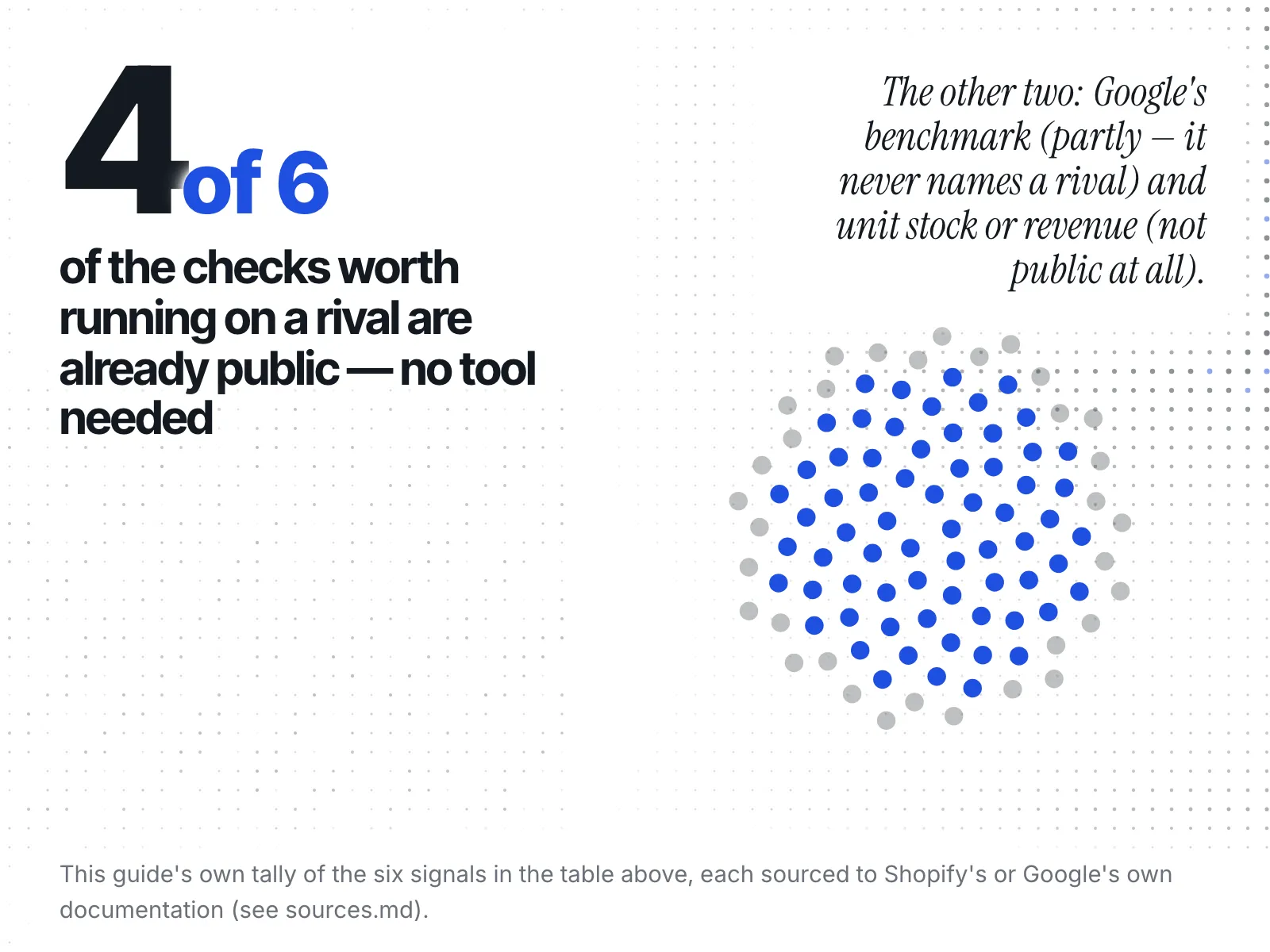
| Signal | Public? | Where to look | What it won't tell you |
|---|---|---|---|
| Current price per variant | Yes | The product page, or its .js version | Why it changed |
| On sale or not | Yes | Compare-at price on the product page | How long the sale will run |
| Sold out or in stock | Yes | The available flag per variant | How many units are left |
| Ads they are running | Yes | Meta Ad Library | Spend, for ordinary commercial ads |
| Your price against the market | Partly | Google Merchant Center, Price Competitiveness | Which retailers are in the average |
| Revenue or unit sales | No | Nowhere public | — |
How do you read a product page without any tool?
Add .js to the end of a product's URL. Shopify documents this as part of its Ajax API, and the response lists every variant with its price, SKU, options and whether it is available. No account or key is involved: Shopify's own Ajax API documentation says "This is an unauthenticated API."
The documented request is one product at a time, by its handle: GET /{locale}/products/{product-handle}.js, according to Shopify's product reference. Two limits are worth knowing. It only works on themes hosted by Shopify; the docs say "You can't use the Ajax API on a Shopify custom storefront." And the variant data includes available but no stock count.
You will see blog posts point you at a whole-catalogue /products.json address instead. It is widely used, but it is not in Shopify's Ajax API reference, which lists only Cart, Product, Product Recommendations and Predictive Search. Treat it as something that works today and could change without notice, not as a feature to build a habit on.
What about their theme and apps? Apps add pieces to a store through theme app extensions, which the merchant places in the theme editor, and Shopify's theme app extension docs list "asset hosting on the Shopify CDN." So the scripts a page loads are in its page source, which your browser will show you. A file name is a lead about which app is installed, not proof, and it tells you nothing about how well that app works for them.
One note on manners. Opening a public page is what every shopper does. If you ever automate these checks, read the store's robots.txt first. Shopify gives every store one and lets the merchant customise it.
Can you see a rival's prices and discounts?
Yes. A Shopify sale is set by putting the original price in the Compare-at price field and the lower price in Price, and both can show on product and collection pages. So a struck-through price on their page is the store's own sale marking, not your guess.
Shopify's help page on sale pricing says it plainly: "To set a sale price, set the value of the Compare-at price field…to the original price of the product." The same field is public on the Storefront API as compareAtPrice.
One reading tells you today's price. A pattern needs readings over weeks.
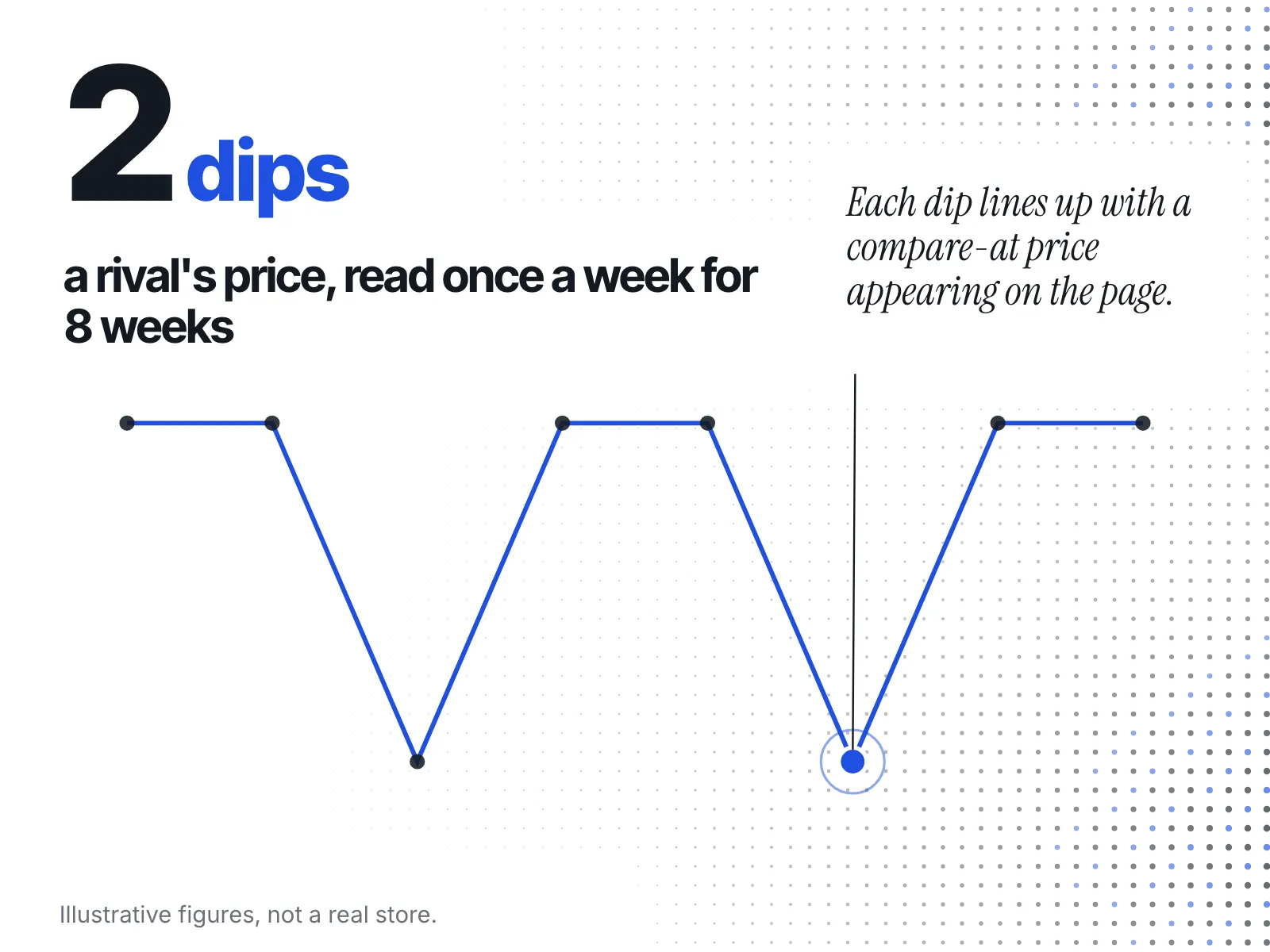
Our guide to building a rival's sale and discount calendar walks through that method step by step.
Can you see how much stock a competitor has?
You can see whether each variant is available. You usually cannot see how many units are left. For stores created after December 5, 2017, Shopify's json filter leaves stock counts out of the product data a theme serves, and the API field that holds them needs access only the store itself can grant.
The Liquid json filter docs give the reason: "These properties are excluded to help prevent bots and crawlers from retrieving inventory quantities for stores to which they aren't granted access." So a tool that shows you a rival's exact unit count is usually estimating, and it should say so. The exception is the store's own page: a theme can print a real stock count on the product page itself (the variant's inventory_quantity), so a count shown there comes from the store, not from a guess. The full mechanics, including the Storefront API's availableForSale flag, are in what you can and can't see of a competitor's inventory.
Can you see the ads a competitor is running?
Yes, for ads on Meta's apps. The Meta Ad Library is, in Meta's words, "a comprehensive, searchable database for ads transparency." For an ordinary commercial ad it shows the creative, the copy, the call to action, the platforms and when the ad started. It does not show spend.
Spend, reach and funding are disclosed for ads about social issues, elections or politics, and Meta keeps those "for 7 years." Ads delivered in the EU get extra information and stay archived for one year after their last impression. Our walkthrough on finding a competitor's Facebook ads covers the search itself.
Does Google Merchant Center show a competitor's price?
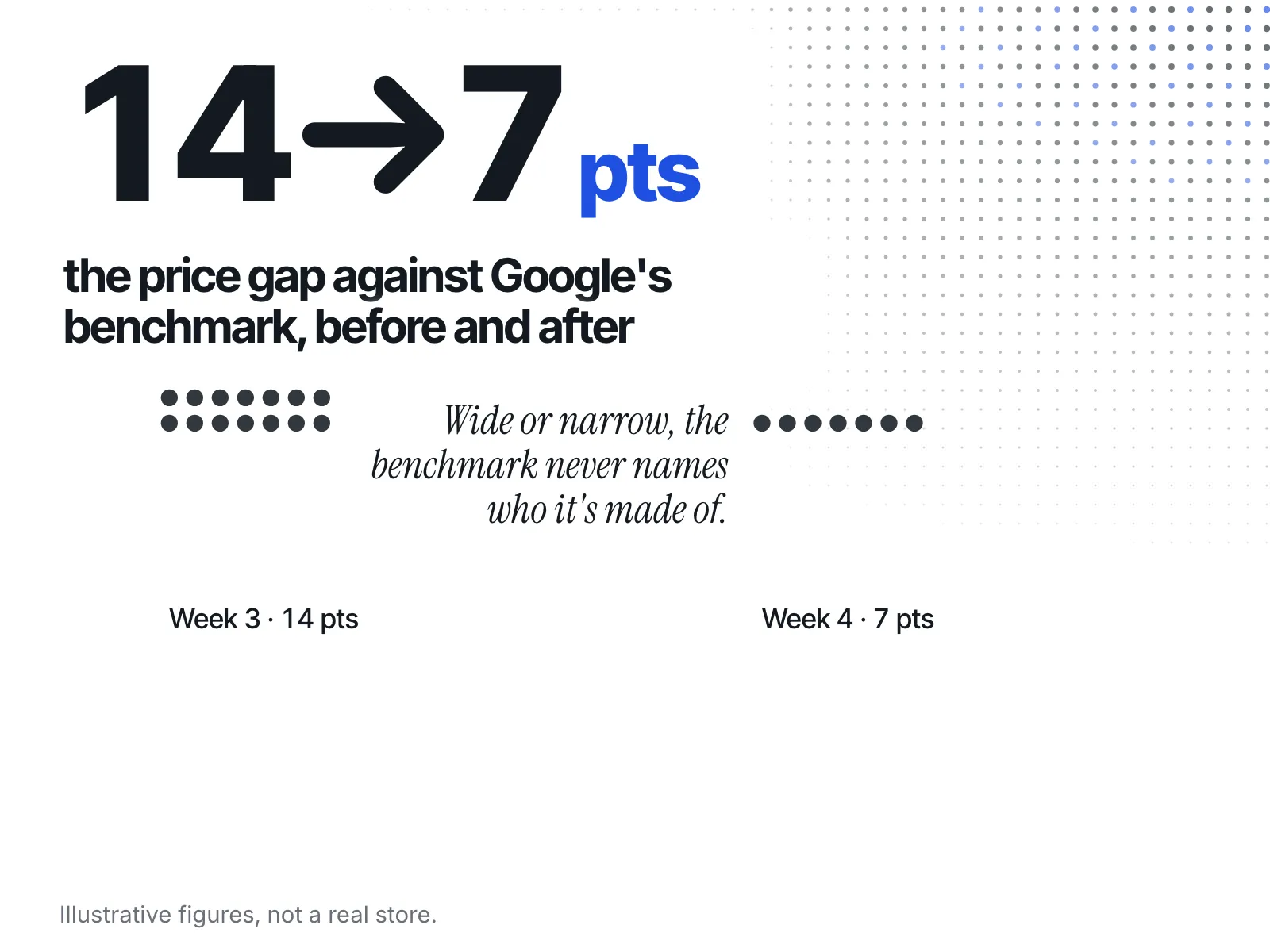
No, and this is the claim most worth correcting. Google Merchant Center's Price Competitiveness report compares your price with a benchmark averaged across every retailer selling the same product, matched by GTIN. It never names a retailer, so it cannot show you one rival's price.
You find it under the Pricing tab in Analytics. According to Google's help page on the report, it shows three things: your price, a benchmark price, and the price gap between them. The benchmark is defined as "the average price that typically leads to more successful ad auctions, impressions, clicks, or conversions."
Two lines on that page decide whether it is any use to you. First: "The prices used to calculate a benchmark are taken from all retailers selling a product with the same GTIN in Shopping ads and organic listings." Second: "To receive price benchmark data from you and other retailers, you must provide a valid GTIN for your products."
So if you resell a branded product that other shops also stock, the report tells you whether you sit above or below the market. If your rival sells their own private-label line, nobody else carries that GTIN, so there is no benchmark to read. Either way, nothing in the report says which shops are in the average.
What can't you see about a Shopify competitor at all?
Three things stay hidden: how many units a rival holds (unless their own product page prints a stock count), how much they really sell, and which retailers sit inside a Google price benchmark. Any other number you see for those is usually an estimate or a guess, and it should be labelled that way.
Revenue is the one people most want, and it is where the wildest tricks live. One popular blog tip is to buy the same item twice, a month apart, and compare the order numbers. It costs you two real orders and assumes the numbers count up one order at a time, which you cannot confirm from outside.
What does this look like for one rival?
Say you sell scented candles and a rival launches a winter range.
- Open their best-seller and add
.jsto the URL. Note the price for each size and which variants showavailable: false. - Look for a compare-at price on the product page. A struck-through price means the store has marked it as a sale.
- Search their page name in the Meta Ad Library. Note which products the active ads show and the start dates.
- If they also sell a branded product you stock, check your Price Competitiveness report for it. For their own candles, skip this step: there is no shared GTIN to benchmark.
That is an honest once-over of one rival. It tells you what they are pushing now. It cannot tell you what changed last Tuesday, because you were not looking last Tuesday.
How do you keep watching without checking by hand every week?
The method above is a snapshot. The real job is the same checks on several rivals, repeated, so you can see what changed. That is the part ecvision does for you, built on the same public signals.
On ecvision's Products page, the Sales Intelligence tab reads each tracked product's price and compare-at price at every reading. Open a product's row and its price panel says "flat across N readings" with "on sale" or "no discount", or counts the changes with the low and the high price. That is the compare-at check from earlier, turned into a running record. When a tracked product is unavailable, that same opened row states Sold out right beside the price panel, not as a badge, shown only because the storefront itself reported it that way.
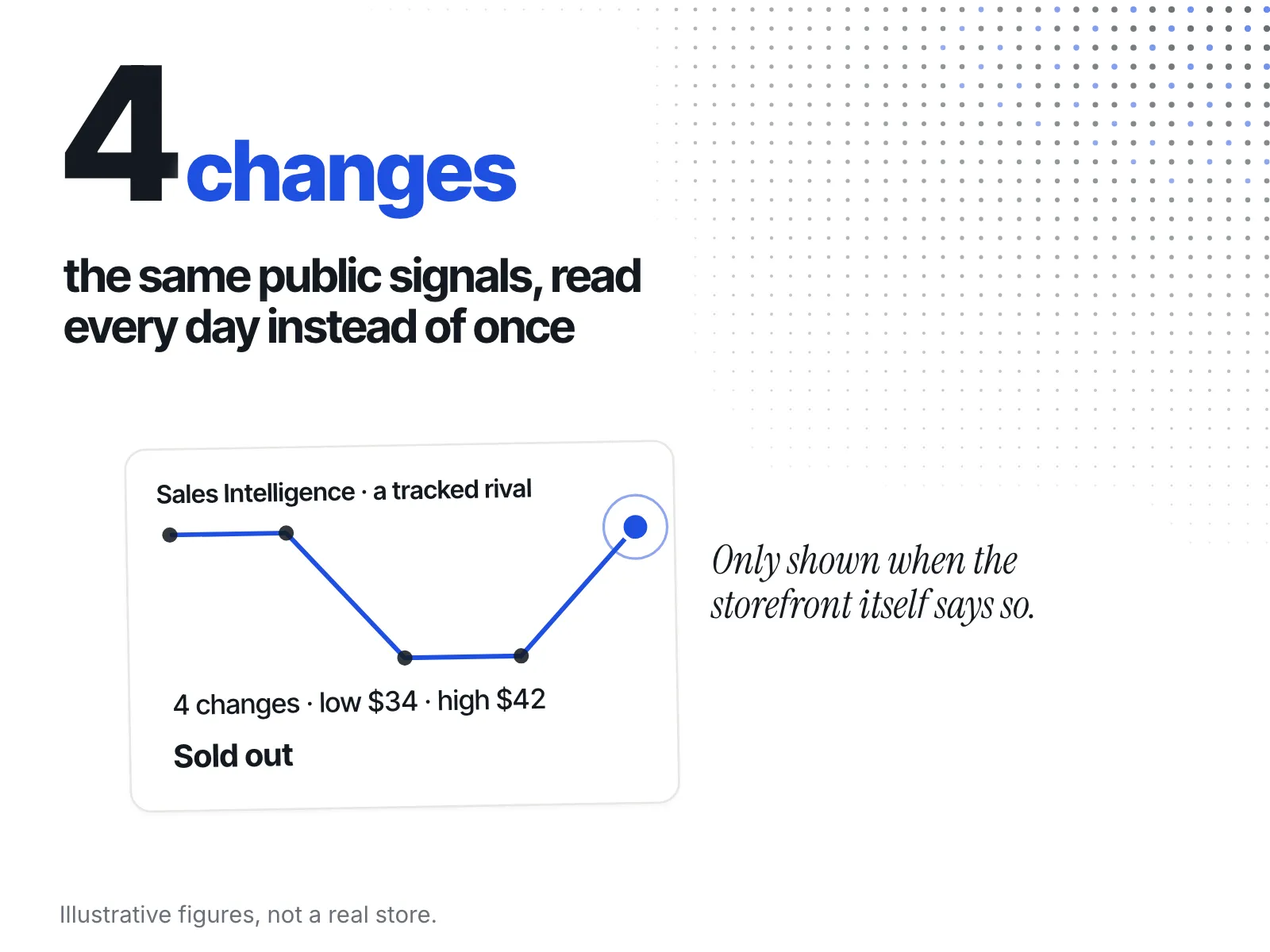
The Catalogue tab is a separate view, and it is where stock status gets a badge you can filter by. There, ecvision shows a Sold out badge only when the storefront itself reported the product as unavailable. The code comment behind it puts the rule plainly: "Availability it never published is not a claim we get to make on a competitor's behalf." You can filter tracked products there by All, In stock or Sold out.
For ads, each tracked rival's ad carries a Running or Ended badge with a Running for figure, read from the same public ad library. How often to look is its own question; our piece on how often to check competitor Shopify stores answers it. To set up tracking, see ecvision's plans.
The checklist
- Price and variants: add
.jsto a product URL. - Sale or not: look for a compare-at price.
- Sold out or not: read the
availableflag. Unit counts are usually not public, unless the product page itself prints one. - Ads: search the Meta Ad Library. Spend is not shown for commercial ads.
- Your price against the market: Merchant Center's Price Competitiveness report, for products with a shared GTIN only.
- Revenue: unknown. Skip the order-number trick.
- Automating any of it: read the store's
robots.txtfirst.
Sources
Read on 15 October 2026 and re-checked on 16 October 2026.
- Shopify Developer docs, Ajax API, its reference and Product endpoint: an unauthenticated API on Shopify-hosted themes, read one product at a time with
.js, with anavailableflag per variant and no stock count. - Shopify Developer docs, Liquid json filter: why
inventory_quantityis left out of product data for stores created after 5 December 2017. - Shopify Help Center, Sale pricing: how a compare-at price marks a product as on sale.
- Shopify Developer docs, Theme app extensions: how apps add blocks to a theme, with their files hosted on Shopify's CDN.
- Shopify Developer docs, Customize robots.txt: the default
robots.txtevery store gets, and how merchants change it. - Meta Transparency Center, Ad Library tools: what the Ad Library shows for commercial ads, and the extra spend and reach details kept for political and EU ads.
- Google Merchant Center Help, About the price competitiveness report: your price, the benchmark across retailers selling the same GTIN, and the price gap.
- ecvision, the Products page (the Sales Intelligence tab and the Stock filter) and the Running and Ended badges on tracked ads, as they appear in the app today.